

Introduction
We've all been there. You install Zsh, and the very next recommendation you see online is to install Oh-My-Zsh. For a long time, I did exactly that. But over time, the "magic" of heavy frameworks started to wear thin.
Recently, my old web server hosted on a 2011 Macbook Pro running Ubuntu 22.04 started failing and was on life support. I was not ready to spend a lot of money on a replacement computer and was scouring Facebook Marketplace, Craigslist, Nextdoor to get a cheap computer. Incidentally I got a free PC from 2010 with a potentially bad hard drive.
I was ready to troubleshoot and make it work and I set out to repurpose that PC as a lean web server. After extensive research on the right OS, I decided that I will use Debian 13. On hardware of that vintage, every megabyte of RAM and every CPU cycle matters. When I loaded a standard framework onto it, I noticed a distinct, frustrating lag before the prompt appeared.
The terminal shouldn't lag. It should feel like the wind—instant, unburdened, and powerful.
So I stripped everything out and built a native, modular Zsh configuration engine from scratch. I named it Maruti-Zsh, after the ancient Indian deity of the wind, celebrated for immense strength hidden within a modest form.
Here is how I built it, the breaking point that almost locked me out of my own server, and why you might want to drop the frameworks too.
The Philosophy: Zero Frameworks, Zero Bloat
The core issue with modern command-line setups isn't Zsh itself; it's the "black box" plugins that load hundreds of lines of third-party script architecture you will never use.
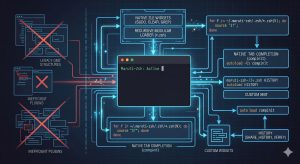
Maruti-Zsh returns to native Zsh internals. By targeting the Zsh Line Editor (ZLE) directly, you can achieve sophisticated features—like syntax highlighting, auto-suggestions, and deep history tracking—with instant startup times.
To keep things organized without a framework, I built a modular architecture. Instead of one massive, unmanageable .zshrc file, the configuration lives in a dedicated directory:
~/.maruti-zsh/
  └── .zsh/
       ├── key-bindings.zsh    # Custom ZLE widgets and shortcuts
       ├── zsh-aliases.zsh     # Navigation and tool aliases
       ├── zsh-completion.zsh  # Completion system and zstyle config
       ├── zsh-history.zsh     # History size and optimizations
       └── plugins/            # Pure git-cloned plugins
The loader in .zshrc sources everything in that directory with a single glob — no hardcoded entries, no framework overhead:
for f in ~/.maruti-zsh/.zsh/*.zsh(N); do source "$f"; done
The (N) qualifier is a Zsh glob flag that suppresses errors if the directory is empty, making this safe to run even on a fresh install.
The Engine: Modular Sourcing (And How I Broke It)
My first attempt at the loader looked like this:
# Do not copy this version!
for f in ~/.zsh/configs/**/*.zsh(N); do source "$f"; done
It worked beautifully on my laptop. But when I deployed it to the server and ran source ~/.zshrc, the terminal instantly kicked me out, locked the session, and refused to let me back in, screaming about running out of BUFFER space.
The Lesson
I had accidentally created a circular recursive loop. The ** globbing pattern was too broad and caught a file that re-triggered the initialization sequence. Because each source execution consumes stack memory, the shell suffered an instant buffer overflow and the OS killed the process.
If you ever find yourself locked out by a broken shell config, you can bypass your initialization files over SSH like this:
ssh -t user@server_ip "zsh --no-rcs"
Once back in, the fix was simple: scope the glob precisely to the .zsh/ directory using *.zsh instead of **/*.zsh, so it only sources files immediately in that folder with no recursive descent:
for f in ~/.maruti-zsh/.zsh/*.zsh(N); do source "$f"; done
With the engine safely loading files, I could start building out the actual configuration modules.
History That Actually Works
Before any widgets, the first thing to get right is history. The defaults Zsh ships with are surprisingly barebones. Here is the full configuration in zsh-history.zsh:
HISTFILE=~/.zsh_history
HISTSIZE=10000
SAVEHIST=10000

setopt HIST_IGNORE_ALL_DUPS  # Don't record duplicate commands
setopt HIST_REDUCE_BLANKS    # Strip superfluous whitespace
setopt HIST_VERIFY           # Show the expanded command before running it
setopt SHARE_HISTORY         # Share history across all open terminals instantly
setopt HIST_IGNORE_SPACE     # Commands prefixed with a space are never saved
That last one — HIST_IGNORE_SPACE — is genuinely useful for secrets and one-off commands you don't want persisted. Prefix any command with a space and it disappears from history entirely.
Tab Completion: Native Power, No Plugin Required
One of Zsh's most underappreciated advantages over Bash is its built-in completion system. It doesn't need a plugin — it just needs to be initialized and configured. This lives in its own module, zsh-completion.zsh, keeping it separate and easy to modify
# Initialize the completion system
autoload -Uz compinit && compinit

# Arrow-key navigable completion menu
zstyle ':completion:*' menu select

# Colorized completions using existing LS_COLORS
zstyle ':completion:*' list-colors "${(s.:.)LS_COLORS}"

# Group completions by category
zstyle ':completion:*' group-name ''

# Label each category group
zstyle ':completion:*:descriptions' format '%F{yellow}-- %d --%f'

# Auto-find newly installed executables without restarting the shell
zstyle ':completion:*' rehash true
What Each Line Does
autoload -Uz compinit && compinit activates the entire completion engine. Without this, Zsh's tab completion falls back to basic filename expansion — functional, but nowhere near its potential.
menu select turns the completion list into a navigable menu. Instead of cycling blindly through candidates with repeated Tab presses, you get a visual list you can move through with arrow keys and select with Enter. This alone is worth the setup.
list-colors pipes your existing $LS_COLORS environment variable into the completion menu, so directories, executables, symlinks, and files all render in the same colors you already see in ls output. The cryptic ${(s.:.)LS_COLORS} is Zsh parameter expansion syntax — (s.:.) splits the string on : into an array that zstyle can consume.
group-name '' tells Zsh to separate completions into named categories — files in one group, shell builtins in another, external commands in another — rather than dumping everything into a single flat list.
format '%F{yellow}-- %d --%f' adds a yellow category label above each group. %d is replaced with the group description, and %F{yellow} / %f are Zsh prompt color codes. Small touch, significant readability improvement.
rehash true tells the completion system to scan $PATH for new executables automatically. Without this, if you install a new tool mid-session, Zsh won't offer it as a completion candidate until you start a new shell or run rehash manually.
A Note on Case Sensitivity
Zsh's completion system supports case-insensitive matching via zstyle ':completion:*' matcher-list 'm:{a-z}={A-Z}'. Maruti-Zsh deliberately leaves this out. Linux is a case-sensitive operating system and the completion system should reflect that — if you type doc, you should get doc, not Documents. The discipline of knowing your filenames matters, and the completion menu shouldn't paper over it.
Power Moves: Custom ZLE Widgets
Without a framework, how do you get premium features? You write small, targeted functions using the Zsh Line Editor (ZLE). ZLE is essentially a tiny text editor living inside your command line — it lets you define functions that manipulate the command buffer directly, then bind them to any key combination you want.
Here are the custom shortcuts in Maruti-Zsh that change how you interact with the shell.
1. The Sudo Toggle (Alt+S)
We've all typed a long command, hit Enter, and received a Permission denied error. Instead of retyping or reaching for sudo !!, this widget toggles sudo on and off at the front of whatever is currently in your buffer:
sudo-command-line() {
    [[ -z $BUFFER ]] && zle up-history
    if [[ $BUFFER == sudo\ * ]]; then
        LBUFFER="${LBUFFER#sudo }"
    else
        LBUFFER="sudo $LBUFFER"
    fi
}
zle -N sudo-command-line
bindkey '\es' sudo-command-line
LBUFFER is everything to the left of the cursor. By prepending or stripping sudo from it, the widget works correctly regardless of where your cursor is in the line.
2. Smart Clear and List (Ctrl+K)
The standard Ctrl+L clears the screen. The Maruti-Zsh version wipes the screen and immediately runs ls so you always have immediate context about your working directory. It's OS-aware — -G for macOS, --color=auto for Linux:
clear-ls-widget() {
    clear
    if [[ "$OSTYPE" == "darwin"* ]]; then
        ls -pG
    else
        ls -p --color=auto
    fi
    zle redisplay
}
zle -N clear-ls-widget
bindkey '^K' clear-ls-widget
zle redisplay tells the line editor to re-render the prompt at the bottom after the ls output, so your cursor is always in the right place.
3. Inline Search Pipes (Alt+G)
When parsing logs or command output, you end up typing | grep constantly. This widget appends it to your buffer instantly and positions the cursor ready to type the search term:
wrap-grep() {
    BUFFER="$BUFFER | grep "
    CURSOR=$#BUFFER
}
zle -N wrap-grep
bindkey '\eg' wrap-grep
4. Edit Command in $EDITOR (Ctrl+O)
When a one-liner gets too complex to manage on a single line, Ctrl+O drops the entire buffer into your $EDITOR (vim, nano, or whatever you have set). Save and quit, and the command executes:
autoload -Uz edit-command-line
zle -N edit-command-line
bindkey '^O' edit-command-line
5. History Prefix Search (Arrow Keys)
This one is simple but transforms how you use history. Bound to the up and down arrow keys, it searches history by whatever prefix you've already typed — so if you type git and press up, you only cycle through previous git commands:
bindkey '^[[A' up-line-or-search
bindkey '^[[B' down-line-or-search
Full Keybinding Reference
| Binding | Action |
|---|---|
Alt+← / Alt+→ |
Move backward / forward one word |
Ctrl+A |
Jump to beginning of line |
Ctrl+E |
Jump to end of line |
↑ / ↓ |
History search by prefix |
Alt+. |
Insert last argument from previous command |
Ctrl+Backspace |
Delete previous word |
Ctrl+Delete |
Delete next word |
Ctrl+U |
Clear entire command buffer |
Ctrl+L |
Kill from cursor to end of line |
Alt+S |
Toggle sudo on current line |
Alt+G |
Append | grep to current command |
Ctrl+K |
Clear screen + show directory listing |
Ctrl+O |
Open current command in $EDITOR |
Ctrl+X N |
Jump to /etc/nginx/sites-available/ |
Ctrl+X W |
Jump to /var/www/html/ |
Making It a Reusable Product
Once the environment was rock-solid, I packaged it into a clean open-source project with a dedicated installer and uninstaller.
The install.sh script handles orchestration safely. It expects you to have zsh installed, verifies its presence, and fails fast if it's missing:
if ! command -v zsh >/dev/null 2>&1; then
    echo "❌ Error: Zsh is not installed on this system."
    echo "Please install Zsh using your system's package manager first."
    exit 1
fi
From there it sets up the directory structure, clones Powerlevel10k and the two plugins (zsh-autosuggestions and zsh-syntax-highlighting) using --depth=1 shallow clones to stay lean, handles font installation with OS-aware paths (~/Library/Fonts on macOS, ~/.fonts on Linux), and drops you into a fresh session.
The uninstall.sh is a complete cleanup utility — it removes the configuration directory, Powerlevel10k, and the .zshrc, then restores either the system default from /etc/skel/.zshrc or creates a clean empty one if no system default exists.
Extending It
The modular loader means adding your own configuration is trivial. Drop any .zsh file into ~/.maruti-zsh/.zsh/ and it will be sourced automatically on the next shell start — no edits to .zshrc required:
# Example: add your own work-specific aliases
nano ~/.maruti-zsh/.zsh/work-aliases.zsh
Conclusion
Dropping Oh-My-Zsh forced me to actually understand the tool I spend hours inside every single day. My terminal prompt now renders instantly, my memory footprint is negligible, and every line of my shell configuration is something I wrote and fully understand.
The circular sourcing bug that locked me out of my own server was the best thing that could have happened — it forced me to understand how Zsh glob patterns and stack memory interact, and the resulting design is tighter for it.
If you want to try it, modify it, or use it to breathe new life into an older machine, the repository is fully documented and open for customization: